1) Random disconnects are real — and no, it’s not “just Bluetooth”
Your wireless connection cutting out isn’t in your head. It’s extra frustrating because everything seems fine right until it isn’t. The audio stops. The screen freezes. Your head unit kicks you back to radio. Then sometimes it reconnects like nothing happened.
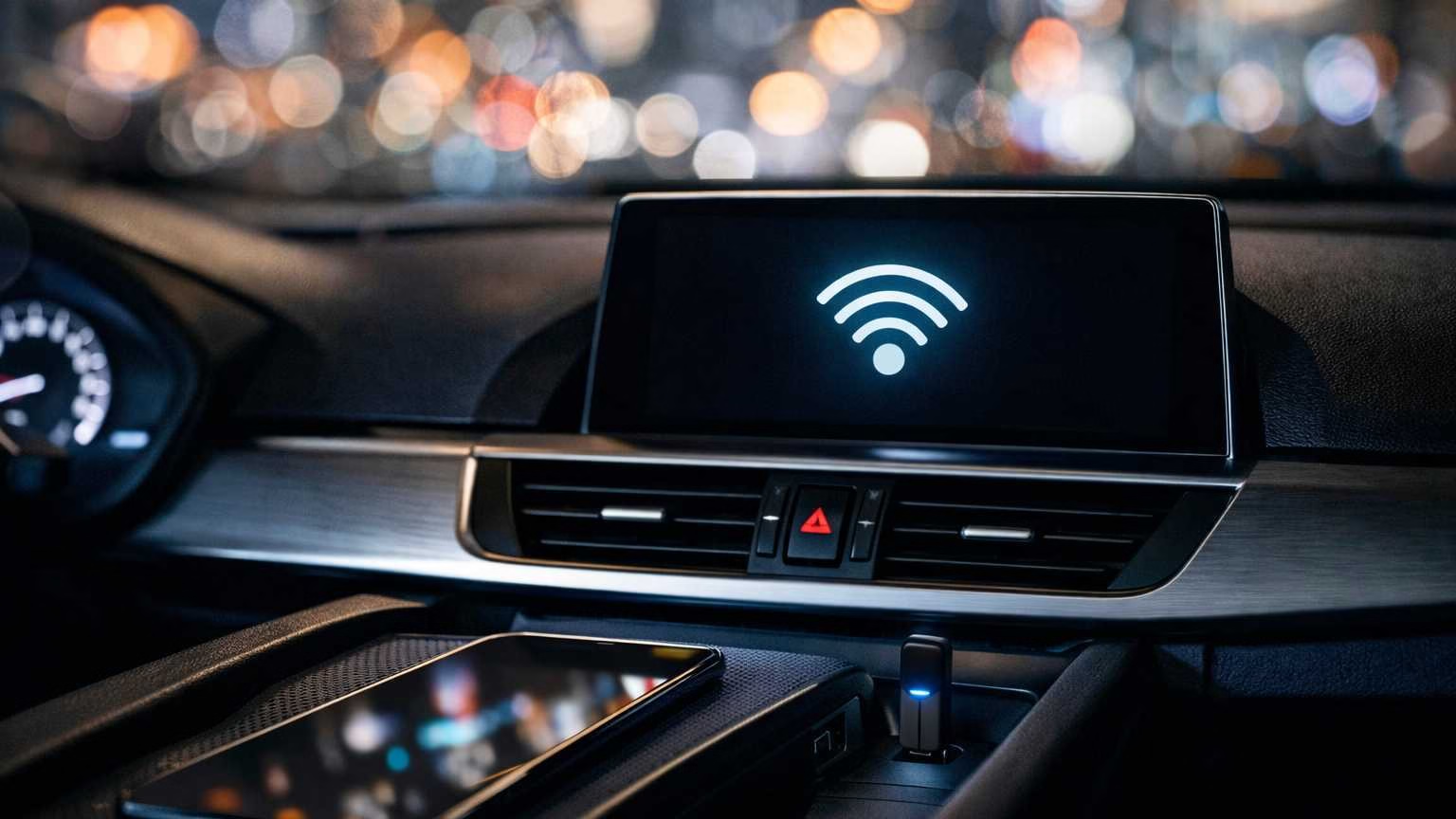
Here’s what most people miss: wireless CarPlay and Android Auto don’t actually run on Bluetooth like regular hands-free calls do. Bluetooth only opens the door. The real work happens over Wi‑Fi. That’s why “forget device, re-pair, reset Bluetooth” often helps for a day before the same problems return. You fixed the wrong part.
The fixes that last only work when you find what’s interrupting the Wi‑Fi side. Or what makes your phone abandon that Wi‑Fi session in the background.
For more options when wireless just won’t behave, check out our guide on the best wireless CarPlay adapter based on real user experiences.
2) How wireless CarPlay / Android Auto actually connects
Keep this simple picture in mind. It explains almost every “random” disconnect.
- Bluetooth goes first.
- Your phone and car discover each other
- They agree wireless projection is allowed
- This stage uses little power and works even when everything else is failing
- Wi‑Fi does the heavy lifting.
- Your head unit creates a direct Wi‑Fi link with your phone
- It usually uses 5 GHz
- This link carries everything: screen images, touch responses, audio, navigation data
- Why your car lies to you.
- Many systems keep Bluetooth “connected” even when the Wi‑Fi stream drops
- You’ll see your phone still connected for calls and music
- But CarPlay/Android Auto disappears
- That’s not a mistake. It’s two different links, and only one died
Remember this one thing: wireless projection is a Wi‑Fi streaming session started and watched by Bluetooth. When the Wi‑Fi stream hiccups badly, the projection session collapses even though Bluetooth stays up.
3) The real causes of disconnections (and how to recognize each one)
These aren’t quick tips. These are failure patterns. Match your symptoms to the right pattern, and the fix becomes obvious.
A) 5 GHz Wi‑Fi interference
Why it causes drops:
- Wireless projection needs steady, low-latency Wi‑Fi
- It’s not like loading a web page where delays don’t matter
- 5 GHz has more channels but less range than 2.4 GHz
- It’s easier to disrupt in noisy places or when your phone is in a bad spot
Signs to watch for:
- Drops happen in the same places: busy intersections, parking garages, toll plazas
- The disconnect is sudden
- Recovery takes 10-30 seconds or requires driving a block
- Wired connection works perfectly in the same car and route
Is it temporary?
Mostly environmental, but some setups are naturally sensitive:
- Weak head unit Wi‑Fi radio
- Poor antenna placement
- Phones that struggle with 5 GHz when warm
Common interference sources you might not consider:
- In-car Wi‑Fi hotspots (even unused ones)
- Dash cams with Wi‑Fi (learn about the best dash cam for heat resistance)
- Passenger hotspots and tethering
- Aftermarket wireless adapters fighting for spectrum
- Parking structures with dense Wi‑Fi
B) Phone power management killing background Wi‑Fi
Why it causes drops:
- Phones reduce network activity to save power
- They do this when apps run in the background or screens change
- Wireless projection needs constant connection
- If the OS thinks projection isn’t “important enough,” it throttles Wi‑Fi
- Android phones do this more often due to extra vendor rules
Signs to watch for:
- Disconnects happen after screen locks
- They occur after switching apps
- They happen when you stop interacting for minutes
- The connection returns quickly when you unlock or open the projection app
- Problems worsen when battery is low or “battery saver” is on
Is it temporary?
No. This is built into how phones work. It will keep happening until you change power settings.
C) Aggressive battery optimization modes (especially Android)
Why it causes drops:
- Battery optimization restricts background services
- It limits network access
- It can prevent the projection service from staying active
- Some Android phones treat projection like any background app unless you exempt it
Signs to watch for:
- Works fine after a reboot
- Gets worse over days
- Drops happen more when battery is below 20-30%
- “It disconnects when I put my phone down and stop touching it”
Is it temporary?
No. If optimization is aggressive, re-pairing won’t help.
D) Head unit firmware instability
Why it causes drops:
- Head units run their own Wi‑Fi and Bluetooth systems
- Firmware bugs can crash sessions under load
- Some units get unstable after long runtime
- Switching between multiple phones can trigger problems
Signs to watch for:
- The head unit lags before a drop
- Wireless drops match other glitches:
- Delayed steering wheel controls
- Slow boot times
- Occasional black screens
- Problems started after a firmware update
Is it temporary?
No. It will keep happening until the firmware changes. A reboot helps temporarily but won’t fix it.
E) Wireless charging heat throttling the radios
Why it causes drops:
- Wireless charging creates heat
- Projection creates heat
- A warm cabin makes it worse
- When phones get hot, they reduce performance
- They can throttle radio behavior to manage heat
- This happens even without an “overheat” warning
Signs to watch for:
- Disconnects start 10-25 minutes into driving
- Not right away
- Your phone feels hot when you pick it up
- Disabling wireless charging reduces drops
Is it temporary?
Environmental but repeatable. It happens whenever heat builds up.
F) VPNs, DNS filters, and firewall apps disrupting local traffic
Why it causes drops:
- Wireless projection isn’t “internet”
- It’s local traffic between phone and head unit
- VPNs and filters intercept network routing
- They can mis-handle local routes
- They might treat the connection as untrusted
- They might force traffic through tunnels
Signs to watch for:
- Connection drops quickly (30-90 seconds)
- Disabling VPN immediately stabilizes connection
- Phone shows Wi‑Fi connected but “no internet” (normal for projection)
- Some apps react badly to this state
Is it temporary?
No. It will keep happening as long as those apps are active.
G) Multiple paired phones competing for priority
Why it causes drops:
- Head units try to auto-connect to the “last used” phone
- They keep other paired devices in memory
- They may try connecting to them in the background
- Your partner’s phone in the car can cause issues
- Your old phone still paired can wake up and interfere
- Wireless projection is less forgiving than regular Bluetooth audio
Signs to watch for:
- Drops happen when a second phone enters the car
- They occur when someone else starts the car
- Head unit briefly shows the wrong phone name
- You see repeated connect/disconnect notifications
Is it temporary?
No. It will keep happening until you clean up pairings and set priorities.
4) Fixes that actually stick (prioritized by impact)
This isn’t about starting easy. Start with changes that eliminate the real failure modes.
Fix 1: Stop the phone from “helping” with battery optimization
What it solves:
- Background Wi‑Fi throttling
- Projection service getting suspended
- Drops after inactivity or screen lock
What to do (especially on Android):
- Make projection apps “Unrestricted” in battery settings
- Turn off “Battery Saver” while driving if your phone is aggressive
How you’ll know it worked:
- Drops after non-interaction stop happening
- Reconnects become rare and location-based instead of time-based
What’s pointless:
Re-pairing over and over. If the OS suspends the service, pairing changes nothing.
Fix 2: Prevent Wi‑Fi scanning from yanking your phone off the car link
What it solves:
- Drops in busy Wi‑Fi areas
- Your phone abandoning the head unit Wi‑Fi for “better internet”
Why this matters:
- Head unit Wi‑Fi often has no internet
- Phones don’t like that
- They may probe and decide the connection is “bad”
- They try to switch to known networks or cellular
What to change:
- Turn off settings that scan for networks aggressively
- Disable auto-switching to “better” connections
- Turn off features that keep scanning when Wi‑Fi is “off”
- If your phone has options like “Auto-switch to mobile data” or “Smart Wi‑Fi,” adjust them so they don’t abandon projection Wi‑Fi
How you’ll know it worked:
- Drops at city hotspots reduce dramatically
- Your phone stops trying to jump to nearby networks while driving
What’s overused:
“Reset network settings” as a first move. It wipes useful saved networks and pairings but doesn’t change scanning logic. Only use it when settings are clearly broken.
For a deeper dive into how these systems actually work, read our explanation of Wireless CarPlay & Android Auto: Bluetooth vs. WiFi & The “Lag” Truth.
Fix 3: Remove unused paired phones and lock priority
What it solves:
- Random drops when another device appears
- Head unit “deciding” to connect elsewhere
What to do:
- Delete old phones from your head unit pairing list
- Remove old car entries from your phone too
- Set a “primary” device if your head unit allows it
How you’ll know it worked:
- Head unit stops attempting background connections
- Wireless projection stays consistent with multiple people in the car
What’s pointless:
Leaving five phones paired and hoping “last connected” logic works perfectly. It won’t, especially after sleep/wake cycles.
Fix 4: Update or roll back head unit firmware
What it solves:
- Known wireless projection bugs
- Wi‑Fi stack instability
- Memory leaks that worsen over time
How to approach this like a tech:
- If wireless was stable for months but became unstable after an update, treat the update as the problem
- If wireless has always been unstable, check for firmware updates addressing connectivity
How you’ll know it worked:
- Drops stop across different environments (not just one route)
- Head unit becomes snappier and recovers faster from sleep
Reality check:
Some head units have weak wireless hardware. Firmware can improve stability, but it can’t turn a marginal radio into a great one.
Looking for a more reliable solution? See our reviews of the best wireless Android Auto adapter options that Reddit users actually trust.
Fix 5: Turn off wireless charging for testing
What it solves:
- Drops after 10-25 minutes
- Drops on warm days or in direct sun
Test method:
- Do two similar drives: one with wireless charging, one without
- If the no-charging drive is stable, you found the cause
Long-term options:
- Use a vent mount instead of a charging pad
- Avoid stacking your phone on hot surfaces
- Charge by cable (usually cooler and more stable)
- If you must use the pad, remove thick cases that trap heat
Fix 6: Lock your phone to one Wi‑Fi behavior while driving
What it solves:
- Phones trying to be “smart” and roaming
- Inconsistent behavior across OS updates
Practical steps:
- Reduce variables while driving
- Don’t run a hotspot on the same phone that’s projecting
- Avoid dash cams with active Wi‑Fi unless you need them live (consider a dash cam that won’t overheat in summer)
- Don’t leave your phone connected to multiple Wi‑Fi accessories that wake/sleep unpredictably
Simple rule:
While troubleshooting, make your phone’s Wi‑Fi job one thing only: connecting to your head unit.
Fix 7: Reset network settings only when justified
When it’s justified:
- Your phone won’t hold any Wi‑Fi connection reliably (not just the car)
- Bluetooth/Wi‑Fi toggles behave oddly (greyed out, stuck states)
- You’ve changed too many network settings and need a clean start
When it’s a waste of time:
- Your problem is heat, interference, VPN routing, or head unit firmware
If you do it:
- Understand you’re wiping Wi‑Fi networks, Bluetooth pairings, and sometimes VPN profiles
- Plan for the cleanup afterward
5) Brand and vehicle reality (so you don’t blame yourself)
Some vehicles simply have weaker wireless modules. Or worse antenna placement. This shows up as:
- “Works if the phone is in the open”
- “Drops if it’s in the console”
- “Wired is perfect, wireless is fragile”
Some phone models are more aggressive with power control. Especially when:
- Battery is low
- Device is warm
- OS update changes background policies
This doesn’t mean the phone is “bad.” It means it’s built for battery life, not constant low-latency streaming.
Sometimes it really isn’t your fault. If the head unit firmware has a wireless bug, you can do everything “right” and still get drops until the software is fixed.
6) When to stop troubleshooting (and choose wired on purpose)
Wireless projection is convenient, but not magic. It’s a live Wi‑Fi stream in a noisy place, inside a metal box, surrounded by other radios. Sometimes it will never be 100% stable.
Stop chasing it if:
- Drops happen predictably in busy RF areas
- You’ve already adjusted scanning/switching behavior
- Your phone runs hot in normal driving conditions
- Cabin heat makes this unavoidable
- Your head unit has known wireless instability
- Firmware updates haven’t solved it
Wired CarPlay/Android Auto isn’t a downgrade. It’s a different system with fewer failure points:
- No 5 GHz interference sensitivity
- Less dependence on background Wi‑Fi behavior
- Better audio stability and lower latency
How to decide based on your usage:
- Short commutes with lots of city RF congestion: wired often saves your sanity
- Long highway drives in stable environments: wireless may work fine once heat and power are managed
- If you rely on navigation and calls for work: stability beats convenience
7) Wrap-up: Diagnose the layer, then apply the fix
Most “random disconnect” complaints aren’t Bluetooth problems. Even when Bluetooth is the only thing you see. Bluetooth starts the session. Wi‑Fi keeps it alive. When projection drops while Bluetooth still looks connected, that’s your clue.
The fixes that last aren’t dramatic. They’re the ones that:
- Stop your phone from switching networks
- Stop power management from suspending the projection stream
- Remove device-priority conflicts
- Address head unit firmware instability
Heat and VPN-style routing are the wildcards that catch people who swear they “tried everything.”
Work from cause to fix, not from habit to habit. When you treat this like a two-layer link—Bluetooth initiation, Wi‑Fi streaming—the problem stops being mysterious. And the solution stops breaking again next week.
Nataliya Vaitkevich is the founder of ReviewFriendly.com. With a focus on transparent and data-driven research, she specializes in analyzing customer reviews and product specifications to help readers find the best items for their needs. Her work is dedicated to making online shopping simpler and more reliable. =======