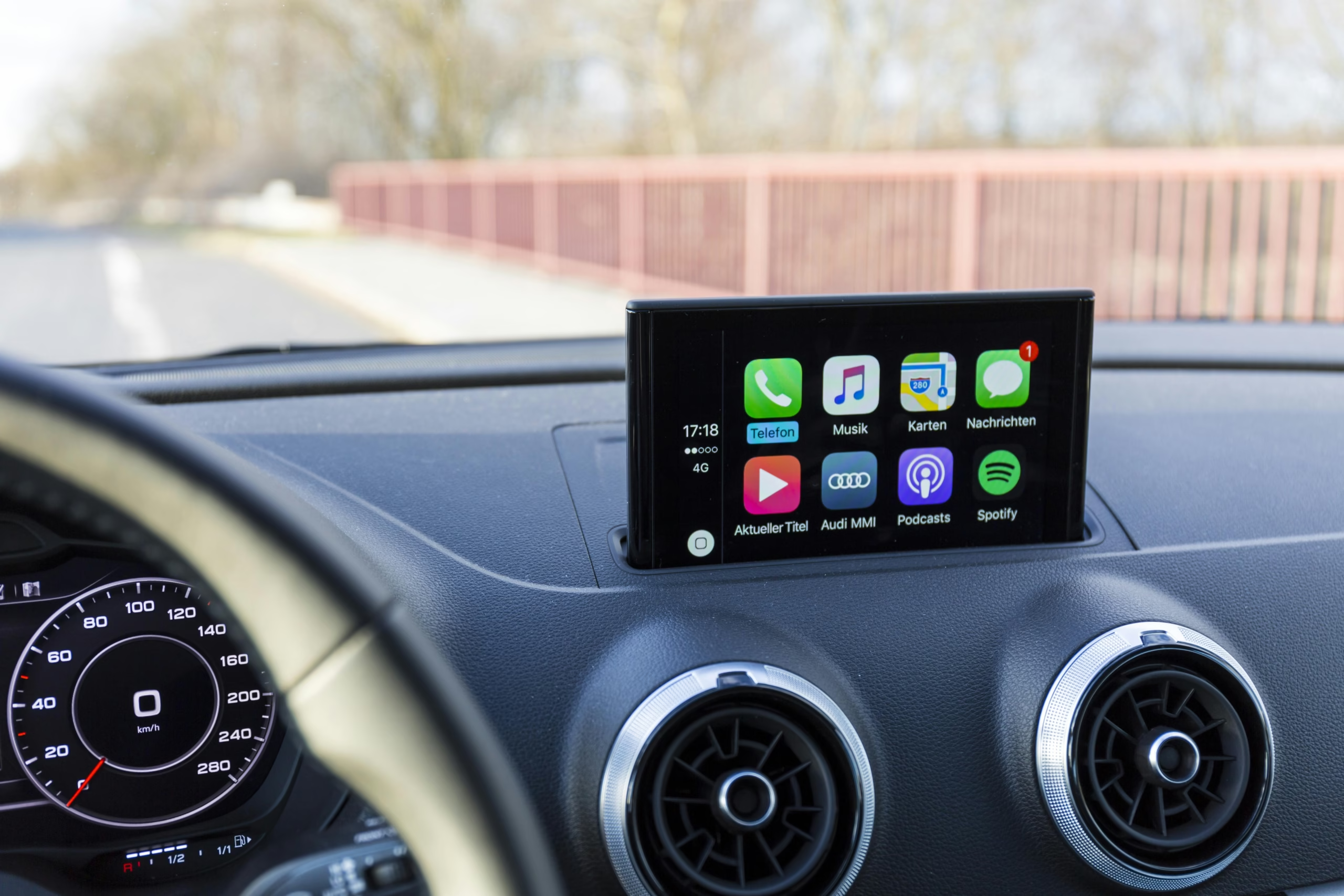
If your CarPlay stopped working, you are not alone. It can feel random. One day it works fine. The next day, your screen stays blank, your phone will not connect, or music will not play.
The good news is this. Most CarPlay problems are easy to fix. In many cases, the cause is small. It might be a weak cable, a hidden setting, a glitch in your phone, or a problem with the car’s system.
This guide walks you through the most common reasons CarPlay stops working. More important, it shows you what to do next. Start at the top. Work through the steps one by one. You can often solve the issue in a few minutes.
The Quick Answer: Why Is My CarPlay Not Working?
CarPlay usually stops working for one of a few simple reasons:
- Your iPhone or car is not set up right
- CarPlay is turned off in settings
- Siri is disabled
- Your USB cable is damaged or low quality
- Bluetooth or Wi-Fi is acting up
- Your car’s system needs a restart
- Your iPhone software needs an update
- Your car only supports wired CarPlay, not wireless
- Restrictions on your phone are blocking CarPlay
If you want the fastest fix, check your cable, restart your phone and car, and reconnect CarPlay from scratch. Those steps solve a lot of issues.
How to Fix CarPlay When It Is Not Working
1. Make Sure Your iPhone and Car Support CarPlay
Start with the basics. It sounds obvious, but this step matters.
Not every car supports CarPlay. Some cars support wired CarPlay only. Others support both wired and wireless. Your iPhone also needs a version of iOS that works with CarPlay.
If your car never had CarPlay before, the issue may not be a bug at all. It may just not support the feature. If your car does support CarPlay, make sure you are using the right method to connect. A lot of people try wireless CarPlay in a car that only works with a cable.
That simple mix-up can waste a lot of time.
2. Check If CarPlay Is Enabled on Your iPhone
Sometimes CarPlay is turned off, and you do not realize it.
Open your iPhone settings and check if CarPlay is allowed. If your car has connected before, you should see it listed. If it is missing, your phone may not be seeing the car at all.
This step matters more than people think. You can have the right cable, the right phone, and the right car, but CarPlay still will not start if the feature is disabled.
If you share your phone with family or use a work phone, this is even more likely. Some settings change without much warning.
3. Make Sure Siri Is Turned On
CarPlay depends on Siri more than many people expect.
If Siri is off, CarPlay may not launch the way it should. It can also connect halfway and then fail. That leads to a lot of head-scratching because the phone may still charge, but the screen stays stuck.
Turn Siri on if it is off. Then try CarPlay again.
This is one of those fixes that feels too simple. Yet it works often enough that it should be near the top of your list.
4. Inspect Your USB Cable
A bad cable is one of the biggest reasons CarPlay stops working.
Your phone may still charge, so the cable looks fine. But charging is not the same as sending data. Some cables only charge. Others wear out over time. A cheap cable may work one day and fail the next.
Try a different cable. Use one that is high quality and made for iPhone use. Also check the cable for bends, fraying, or a loose fit.
While you are at it, look at your phone’s charging port. Dust and lint can block a solid connection. A quick clean can make a big difference.
If CarPlay charges your phone but does not connect, the cable is a strong suspect.
5. Restart Your iPhone and Your Car
This fix sounds boring. It still works.
Restart your iPhone first. Then turn your car off fully. Wait a moment. Start it again. If your car has an infotainment reboot option, use that too.
Small software glitches can break the handoff between your phone and the car. A restart clears that out. It gives both systems a clean start.
Do not skip this step because it seems basic. Many connection issues disappear after a simple restart.
6. Reconnect CarPlay From Scratch
If CarPlay used to work and suddenly stopped, the connection may be corrupted.
Remove the car from your CarPlay settings. Then remove your iPhone from the car’s saved devices. After that, pair everything again from the beginning.
This sounds annoying, but it often fixes problems that a restart cannot. Think of it as wiping the slate clean.
If you use wireless CarPlay, re-pair Bluetooth too. If you use wired CarPlay, reconnect with a fresh cable after you remove the old pairing.
A clean setup often solves strange issues fast.
7. Check Bluetooth and Wi-Fi for Wireless CarPlay
Wireless CarPlay needs more than just Bluetooth. It usually needs both Bluetooth and Wi-Fi working together.
If either one acts up, CarPlay may fail to connect. Or it may connect for a few seconds and then drop.
Turn Bluetooth off and back on. Do the same with Wi-Fi. Then try again. If you use a VPN, turn it off for a moment and test the connection. Also make sure your phone is not trying to stay connected to another car, speaker, or device nearby.
Wireless CarPlay is handy, but it has more moving parts. That means more chances for a small issue to get in the way.
8. Update Your iPhone and Your Car’s System
Software bugs can break CarPlay. This happens more often after updates.
If your CarPlay stopped working right after an iPhone update, the timing may not be a coincidence. The same goes for your car’s system. If the car software is old, it may not play well with a newer phone.
Check for updates on your iPhone. If your car brand offers system updates, check that too.
You do not need to obsess over updates every week. But if CarPlay started acting up after a big change, this is worth checking.
9. Allow CarPlay When Your Phone Is Locked
Your phone might be blocking CarPlay when the screen is locked.
That setting can stop automatic launch. It can also make it seem like CarPlay is broken, when really your phone is just waiting for permission.
Allow CarPlay while locked, then reconnect and test again.
This is a quiet little setting. Many people miss it. Yet it can be the whole problem.
10. Check Screen Time or Other Restrictions
Restrictions can shut off CarPlay without making the cause obvious.
If Screen Time is active, or if the phone is managed by a job or school, CarPlay may be blocked. This can happen even if nothing else seems wrong.
Look through your restriction settings and make sure CarPlay is allowed. If you use a company phone, some controls may come from the organization, not from you.
This step matters most when CarPlay stopped working after a settings change, a new phone setup, or a hand-me-down device.
11. Try Another USB Port in the Car
Not every USB port in a car supports CarPlay.
Some ports only charge your phone. Others handle data and CarPlay. If you plug into the wrong port, your phone may charge but never connect.
Try another port if your car has more than one. Also test the fit. A loose port can cause random disconnects while driving.
This is easy to overlook. Many drivers assume every port does the same thing. In many cars, that is not true.
12. Reset Network Settings as a Last Resort
If nothing else works, reset your network settings.
This can help when Bluetooth, Wi-Fi, or saved connections are tangled up. It gives your phone a fresh start for wireless connections.
There is one catch. This reset removes saved Wi-Fi passwords and Bluetooth pairings. So use it near the end of your troubleshooting list, not at the start.
It is a stronger fix. But when wireless CarPlay keeps failing for no clear reason, it can do the trick.
CarPlay Problems by Symptom
Sometimes the fastest fix comes from matching the problem to the symptom. Let’s do that next.
CarPlay Is Connected but the Screen Is Blank
A blank screen usually points to a glitch between the phone and the car display.
Start with a restart. Then reconnect the phone. If you use a cable, switch it. If the screen stays blank but the phone charges, the cable or USB port may be the issue.
A frozen car system can also cause this. If your car has a way to reboot the display, try that too.
CarPlay Keeps Disconnecting
Frequent disconnects usually mean one of three things. A loose cable. A weak USB port. Or wireless signal trouble.
If you use wired CarPlay, test a new cable first. That is the fastest way to rule out the most common cause.
If you use wireless CarPlay, turn Bluetooth and Wi-Fi off and back on. Also remove old pairings that you no longer use.
If the issue happens only while driving over bumps, a loose cable or worn port is very likely.
CarPlay Is Not Working After an iPhone Update
This is frustrating, but common.
Start with the simple stuff. Restart the phone. Forget the car. Pair it again. Then check for another update in case a bug fix is already out.
If your car system is older, it may also need its own update. New phone software can expose old problems in the car’s setup.
Do not panic if this started right after an update. It often has a fix.
CarPlay Charges My Phone but Will Not Connect
This symptom points hard at the cable or USB port.
The cable may support charging but not data. Or the port may be power-only. Try a different cable first. Then test another port in the car.
Also make sure CarPlay is turned on in your phone settings. If the hardware is fine but the setting is off, you get the same result. Charging works. CarPlay does not.
Wireless CarPlay Is Not Working
With wireless CarPlay, the issue often lives in Bluetooth or Wi-Fi.
Turn both off and back on. Remove the car from saved devices. Pair again. If your phone keeps trying to connect to another device, disconnect that first.
Also make sure your car supports wireless CarPlay. Some cars support only wired mode, even if they support CarPlay in general.
That detail trips up a lot of people.
Does CarPlay Troubleshooting Change by Car Brand?
A little, yes. But the core fixes stay the same.
Ford, Toyota, Honda, Hyundai, BMW, Volkswagen, and other brands all use their own infotainment systems. So the menu names may look different. The screen layout may change too.
Still, the main causes are usually the same. Bad cable. Wrong USB port. Bluetooth issue. Old software. Hidden setting.
So before you chase a brand-specific fix, work through the universal steps first. They solve most cases.
When to Contact Apple or Your Car Dealer
If none of the steps above work, it may be time to get help.
Contact support or your dealer if:
- CarPlay fails with more than one iPhone
- The car screen freezes often
- The USB port seems damaged
- The infotainment system crashes a lot
- The problem started after stereo work or car service
- CarPlay has never worked at all in a car that should support it
At that point, the issue may be deeper than a setting or cable. It may be the car’s hardware or software.
Frequently Asked Questions
Why is my CarPlay not connecting even with a USB cable?
The cable may be damaged or charge-only. The USB port may not support CarPlay. Or CarPlay may be turned off in your iPhone settings. Start by testing another cable and another port.
Why did my CarPlay suddenly stop working?
This often happens after a software update, a cable starts to fail, or the saved connection gets corrupted. Restart both devices and reconnect CarPlay from scratch.
Why is wireless CarPlay not working?
Wireless CarPlay usually needs both Bluetooth and Wi-Fi. If one fails, the connection may not start. Re-pair the phone, toggle both settings off and on, and make sure the car supports wireless mode.
Do all USB ports in a car support CarPlay?
No. Some ports only charge. Others handle data and CarPlay. If one port does not work, try another.
Can an iPhone update break CarPlay?
Yes, sometimes. A new update can cause a temporary bug or reveal an old compatibility issue. A restart, reconnect, or later update often fixes it.
Does CarPlay need Siri to work?
In many cases, yes. If Siri is off, CarPlay may not launch or work as expected. Turning Siri on is a smart early fix.
Final Checklist to Get CarPlay Working Again
Before you give up, run through this list:
- Confirm your car supports CarPlay
- Check if it supports wired, wireless, or both
- Make sure CarPlay is enabled on your iPhone
- Turn Siri on
- Try a better cable
- Clean your charging port
- Restart your iPhone
- Restart your car
- Remove and reconnect CarPlay
- Check Bluetooth and Wi-Fi
- Try another USB port
- Update your phone and car system
- Review Screen Time or restrictions
- Reset network settings if needed
Final Thoughts
If you have been asking, “Why is my CarPlay not working?” the answer is usually not as scary as it feels.
Most problems come down to a few simple things. A worn cable. A hidden setting. A weak wireless link. A software hiccup. That is good news, because those issues are fixable.
Start with the easy checks. Do not jump straight to the worst-case idea. In many cases, you can get CarPlay back in less than ten minutes.
And if you still cannot fix it, at least you will know you ruled out the common causes first. That makes the next step much easier.