

OBD2 scanner not connecting to ECU? Start with what happens when you plug it in. A dark screen points you toward the plug and its power supply. If the scanner lights up but can’t reach the engine computer, check the ignition and the tool’s vehicle coverage. If your phone can’t find the adapter, start with the app.
Start here: What does your scanner actually say?
The ECU is your engine control unit [engine computer]. Your scanner may list it as ECM [engine control module] or PCM [powertrain control module]. Take a photo of the message while it’s on screen. The word that follows “can’t connect” tells you which link to check.
| What you see | Where to start |
|---|---|
| A plug-in reader stays dark | Check the plug and port fuse in Step 2. |
| The app can’t find the adapter | Check phone setup in Step 3. |
| The app finds the adapter but can’t reach the car | Check ignition in Step 1, then coverage in Step 4. |
| The screen says “No codes” | Check live engine data in Step 5. |
| A shop tool reads other systems but can’t reach the engine | See the ECU checks below. |
Common reasons an OBD2 scanner won’t connect
The diagnostic port has lost power or ground
A plug-in reader draws power from the socket under your dash. It also needs a ground [return path for current]. A blown fuse, a loose plug, or a contact pushed back into the socket can leave the screen dark.
Think about what changed since the last scan. Did the plug stop fitting snugly after you added a splitter? If so, take the splitter out before you open the fuse box.
The phone finds the adapter, but the adapter cannot reach the car
With a wireless reader, your phone talks to the plug-in adapter. The adapter then asks the car for engine data. Your phone can complete its part while the engine computer is still asleep.
The same thing can happen if the adapter lacks the protocol [rules for exchanging data] your car uses. That’s worth checking if you bought the reader for a newer car and just tried it on an older one.
The fault is on the vehicle side
Separate contacts in the socket carry power and data. A bright display tells you the reader has power. It tells you little about the wire that carries its request to the engine computer.
The engine computer also needs its own power and ground. A fault on either path can leave it silent. Before paying for wiring tests, see whether a second, compatible tool gets an answer.
How to troubleshoot an OBD2 scanner not connecting
Step 1. Confirm the ignition is in the required position
Park the car and set the parking brake. With a keyed ignition, follow the reader’s directions for the ON or RUN position. Accessory mode can play the radio while the engine computer stays asleep.
Have a start button? Use your owner’s manual to find the ignition-on sequence. Button presses vary by car. The fact that the center screen lights up doesn’t tell you which mode you selected.
Start a fresh scan once the car is in the right mode. Some tools call for the engine to run for the first connection. If yours does, run it outdoors. If the car won’t start, note whether it cranks and share that detail with the shop.
Step 2. If the scanner stays dark, check the plug and fuse
Switch the ignition off and unplug the reader. Shine a light into both ends of the connection. Look for a bent pin on the tool or a contact set deeper than its neighbors in the car. Empty slots can be normal.
Remove any extension, splitter, or plug-in accessory from the socket. Fit the scanner straight into the port by hand. If it binds, pull it back out and check the fit. A plug that works only when you hold it sideways is a clue worth saving.
Find the right fuse
Open the fuse chart for your exact model year. Look for the diagnostic socket or DLC [data link connector]. Some cars share that feed with a power outlet. A dead outlet is a clue only if your chart shows a shared fuse.
Follow the manual to check the fuse. If it has blown, use the type and rating listed for that slot. If the new fuse blows, stop there and have the circuit checked. Take a photo of the slot and its label for the shop.
Read the socket from the correct side
This is the view looking into the vehicle socket, with the wide edge on top. A drawing from the wire side reverses left and right. Use this map to identify contacts and leave electrical testing to someone with the right probes.
| Top row | 1 · 2 · 3 · 4 · 5 · 6 · 7 · 8 |
|---|---|
| Bottom row | 9 · 10 · 11 · 12 · 13 · 14 · 15 · 16 |
- Pin 16 supplies battery power to the reader.
- Pin 4 is chassis ground [ground through the vehicle body].
- Pin 5 is signal ground [reference point for data signals].
Step 3. If the phone cannot find the adapter, check the app setup
Skip this step if your reader has a cable and its own screen. For a wireless tool, check the model name printed on the adapter. Two plugs from the same brand can use different phone setup steps. If you use a Vgate adapter, compare phone and app support for the vLinker MS and MC+.
- Check that the app supports your adapter and phone.
- Follow the maker’s pairing steps. Some models connect from inside the app.
- Allow the app the Bluetooth or nearby-device access it requests for setup.
- Close other scan apps that may hold the connection. Open the maker’s recommended app and try again.
Watch the status message change. If the app now finds the adapter but stalls while searching for the car, you’ve narrowed it down. Leave the phone settings alone and check what the adapter can read.
Step 4. If the adapter connects, verify vehicle and protocol support
Choose generic OBD-II [standard emissions diagnostics] in the scanner menu. If the tool offers automatic protocol detection, use that first. A saved profile for another vehicle can send you down the wrong path.
Check the coverage list for your adapter model, vehicle year, and original sales market. For an imported car, use the market where it was sold new. The year it arrived in your country can point you to the wrong spec.
For example, an OBDLink CX can fit the socket of an older U.S. car that uses a protocol the CX lacks. If you have one, check support for your specific vehicle before chasing a wiring fault. If generic engine data works, check app coverage for the specific system you wanted to read. For an older Ford or GM vehicle, compare vehicle coverage for the OBDLink CX and vLinker MC+.
Step 5. OBD2 scanner not reading codes? Check live engine data
If the warning flashed on the road, first check whether it’s safe to keep driving.
“No codes” and “No communication” point to different next steps. The first can be a valid reply to a request for stored codes. To check the link, open the current live-data screen and select engine RPM [engine speed].
With the car parked and the engine idling outdoors, look for a current RPM reading that refreshes. Make sure you’re in a live session. A saved trip can show engine speed even after you unplug the tool. Zero RPM with the engine off is expected. If the engine speed updates but the scanner shows zero stored codes, here’s what to check when the engine light stays on.
If you can read fresh engine data, look at which warning light brought you here. A basic engine scan can come back clear while the ABS [anti-lock braking system] light stays on. To read that fault, you need a tool and app that cover the brake module on your car.
Step 6. Cross-check with a known-working scanner
Borrow a reader that supports your vehicle. Plug it straight into the same socket, use the same ignition state, and request generic engine data. Keep those details the same so you can tell what changed.
- The second reader works. Focus on the first reader’s cable, app, setup, and coverage. The engine computer answered a request during this test.
- Both readers fail on your car. If possible, try yours on another car it supports. Record whether it powers up and whether it reads live data.
- The fault comes and goes. Note exactly when the link drops. A screen going dark tells the shop something different from a screen that stays lit and reports lost contact.
When should you suspect a faulty ECU?
Find out whether other modules still respond
Ask the shop for a scan of all supported modules [computers that control separate systems]. Can its tool reach the brakes, transmission, or body controls? A basic engine reader can’t answer that question for every car.
If several modules respond and the engine computer stays silent, the shop can narrow its checks to that computer and its connections. If several go missing together, the wiring diagram can show what they share. A lost-contact code in another module records what stopped answering. It doesn’t identify the failed part on its own.
What to verify before approving ECU replacement
Ask which test led the shop to the engine computer. A useful answer identifies what the technician checked at the computer itself, while the fault was present.
- Did the proper power feeds reach the ECU with the ignition on?
- Did its grounds pass the service manual’s tests under load?
- Were the connector contacts clean, secure, and free of damage?
- Did the communication wiring pass the checks for this vehicle?
A good fuse at the box still leaves the wire from the box to the ECU to check. If the tests point to an internal fault, ask for an itemized quote. Find out whether it includes programming and any key setup your car needs.
Conclusion: What to do after the connection test
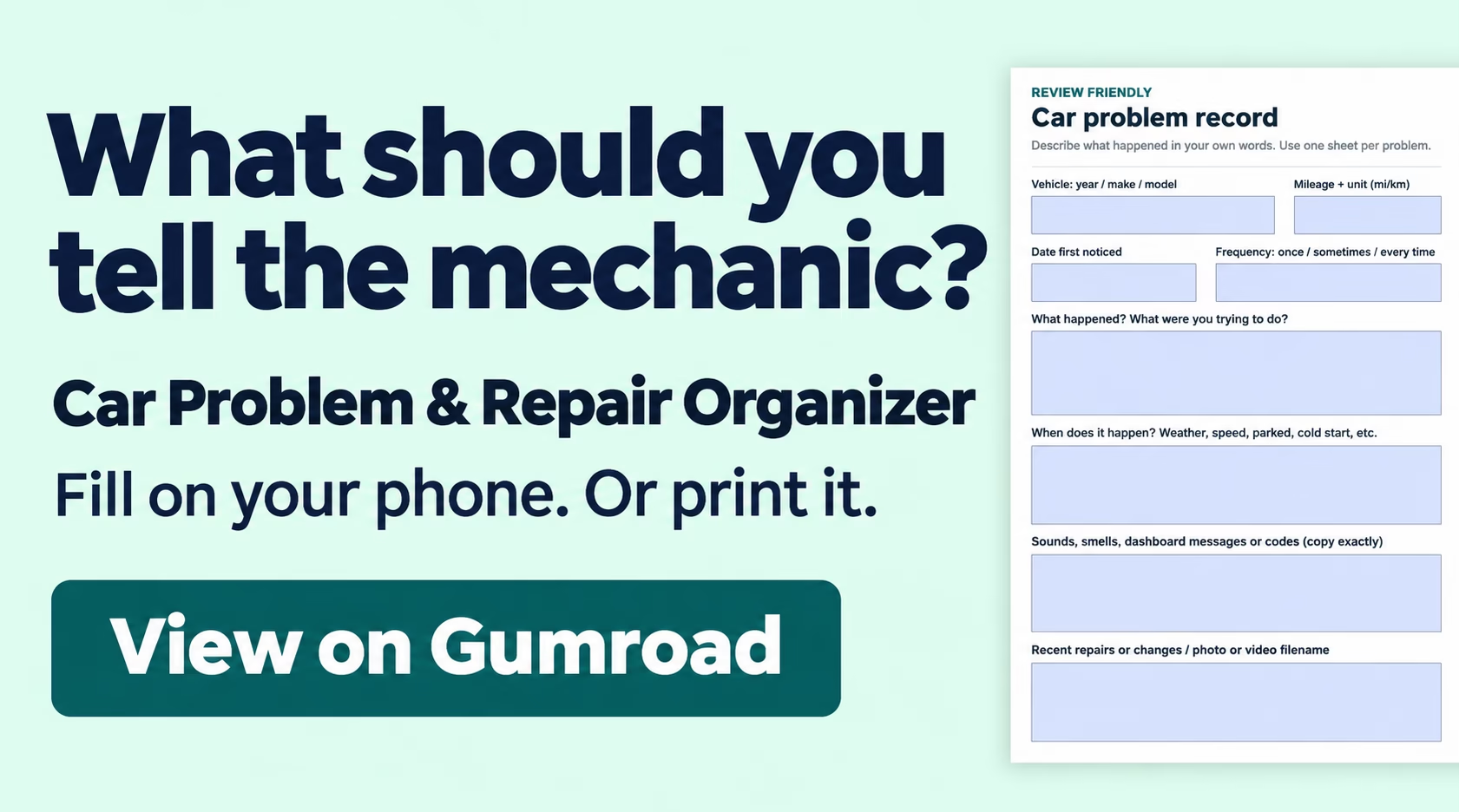
If your notes started with “OBD2 scanner not connecting to ECU,” add the result that narrowed it down. For example, “The borrowed reader showed live RPM with the same key position.” That gives the next person a test they can repeat.
If the connection returns, save the codes and any freeze-frame data [engine readings when a fault was logged] before clearing anything. If it still fails, bring your vehicle year, make, model, tool and app names, exact error, and second-reader result. A photo of the screen or fuse label fits neatly alongside those notes.