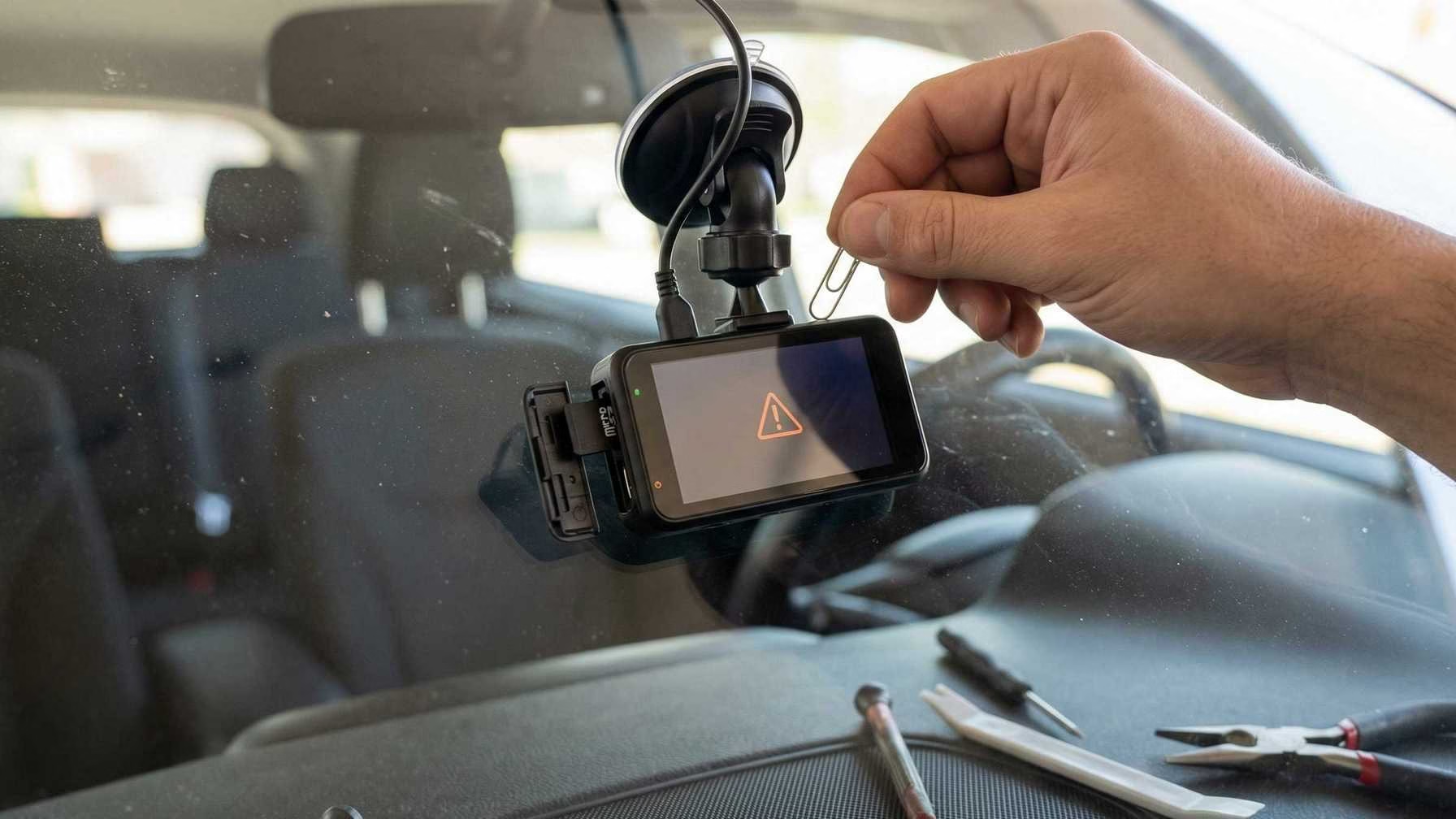
Few things are worse than finding your dash cam didn’t record an accident or close call.
In real life, the main cause of “dash cam not recording” is usually the SD card. Cards wear out. Formatting gets ignored. Files get corrupted. This happens especially in hot cars where the camera records constantly.
This guide explains why SD cards fail in dash cams. It compares endurance and regular cards. It shows how to format correctly. You’ll learn the warning signs of failure and when to replace your card before it lets you down.
How Dash Cams Use SD Cards
Dash cams use SD cards differently than phones or cameras. Knowing this helps everything else make sense.
They record in a loop.
Most dash cams record short clips (like 1 or 3 minutes). They keep recording until the card is full. Then, they overwrite the oldest clips automatically. Your dash cam is writing data constantly whenever you drive.
They constantly overwrite files.
Overwriting is tough on flash memory. SD cards have a limited number of write/erase cycles. A dash cam repeatedly writes new clips, deletes old ones, and writes again for months or years. A card that works in your phone can fail quickly here.
They face extreme heat.
Cars get very hot in the sun. Heat speeds up wear and causes memory errors. Dash cams sit at the top of the windshield, where it’s hottest. Many run while charging, adding more heat stress.
Bottom line:
A dash cam SD card is a consumable item. It is expected to wear out.
Endurance vs Regular SD Cards
If you use a dash cam regularly, you must choose: a standard “regular” card or a high-endurance card made for continuous recording.
What’s the practical difference?
- Regular SD cards are for general use: photos, apps, occasional video.
- Endurance SD cards are built for constant writing: dash cams, security cameras.
Endurance cards handle constant rewriting better. They stay reliable longer under heat and heavy use.
Why regular cards fail faster.
Regular cards often fail in these ways:
- They create corrupted clips.
- They cause the dash cam to freeze or reboot.
- They become read-only (no new files).
- They show constant “Card error” messages.
A regular card might not fail immediately. But it will likely fail sooner under dash cam stress.
Quick Comparison: Endurance vs Regular
Simple advice:
If you rely on your footage (for work or daily commuting), get an endurance card. If you drive rarely, a regular card might work—but it’s a gamble.
Common SD Card Errors in Dash Cams
SD card problems don’t always cause a clear “failed” alert. Often, they cause unreliable recording.
1. “Card Error” Message
- Causes: Worn-out card, corrupted files, wrong format, fake card, or dirty contacts.
2. Random Recording Stops
- Causes: Card can’t keep up with write speed, is near failure, or has a corrupted file system.
3. Missing or Corrupted Footage
- Causes: Power loss during writing, card errors, a too-full card, or a fake card with less real storage.
4. Dash Cam Reboot Loops or Freezing
- Causes: Card firmware errors or severe file system corruption.
5. Short or Odd-Length Clips
- Causes: Unstable card writes or speed dropping below the camera’s needs.
Key takeaway:
If your dash cam acts up, suspect the SD card first. It usually is the culprit. For a detailed guide on resolving these errors, see this resource on how to fix dash cam card error loop recording.
How to Properly Format Your SD Card
Formatting is the best maintenance habit for dash cam reliability. Deleting files manually is not enough.
Why formatting beats deletion.
Deleting clips leaves behind clutter: fragmented data, partial files, and corrupted metadata. Formatting resets the file system cleanly. This lets your dash cam write efficiently again.
Always format inside the dash cam if you can.
This is the best practice. The camera formats the card exactly how it needs it. It creates the right folders and avoids compatibility issues.
FAT32 vs. exFAT: A Simple Guide
- FAT32: Older, widely compatible. Often needed for smaller cards and older cams.
- exFAT: Newer, for larger cards (64GB+). Common on modern devices.
Which one should you use?
- Use what your dash cam manual says.
- No manual? Modern cams often use exFAT for 64GB+ cards. Older models may need FAT32.
- If your camera has a “Format” menu option, use it. It will format the card correctly.
How often should you format?
- Daily drivers / ride-share: Every 2–4 weeks.
- Normal commuting: Every 4–8 weeks.
- Occasional drivers: Every 2–3 months, and before long trips.
- Notice any glitches? Format sooner.
Step-by-Step: Format Inside Your Dash Cam
Menus vary by brand, but the steps are similar.
- Power your dash cam with the car charger.
- Insert the microSD card fully.
- Open the dash cam Menu or Settings.
- Find Storage, SD Card, or System settings.
- Select Format, Format SD, or Initialize.
- Confirm the warning (this deletes all clips).
- Wait for the “Format complete” message.
- Reboot the camera if asked.
- Verify it’s working:
- Start the car.
- Check for the recording icon.
- Record for 1–2 minutes.
- Play back a clip.
Important: Backup any clips you need before formatting.
When to Format on a PC
Format on a PC only when:
- The dash cam doesn’t recognize the card at all.
- You suspect bad corruption and want a clean start.
- You’re preparing a new, picky camera.
It’s not ideal when:
- Your dash cam has a reliable built-in formatter.
- You’re unsure which file system the camera needs.
If you format on a PC:
- Use the correct file system (FAT32 or exFAT).
- Afterward, always format again inside the dash cam if you can. This “double format” fixes odd issues.
SD Card Lifespan: When to Replace
SD cards don’t fail on a set schedule. But you can manage risk with smart replacement times.
What do endurance ratings mean?
They show a card is built for constant writing. But real lifespan depends on your heat levels, recording quality, and driving hours.
Practical Replacement Timelines
Use these as a safe guide, not a guarantee.
- Daily Commuters (1–2 hours/day):
- Endurance card: Replace every 12–24 months.
- Regular card: Replace every 6–12 months.
- Ride-Share / Delivery (4–10+ hours/day):
- Endurance card: Replace every 6–12 months.
- Regular card: Replace every 3–6 months (better to avoid regular cards here).
- Occasional Drivers (weekends only):
- Endurance card: Replace every 24–36 months.
- Regular card: Replace every 12–24 months.
Replace immediately if you see warning signs.
Don’t ignore glitches. A new card is cheaper than missing a crucial video.
Best Practices to Prevent Failures
Good habits stop most “not recording” problems.
1. Pick the right capacity.
- 64GB: Good for basic driving.
- 128GB: The best balance for most people.
- 256GB: Best for high resolution (1440p/4K), long shifts, or parking mode.
Check your camera’s max supported size.
2. Format monthly.
Make it a habit. Format every 2–4 weeks if you drive a lot. Do it sooner if you see glitches.
3. Avoid cheap or fake cards.
Fake cards cause lost files and early corruption. Buy from trusted sellers and keep your receipt.
4. Keep a spare card.
A spare endurance card lets you swap instantly if errors start. It minimizes downtime.
5. Update your dash cam firmware.
Updates can improve SD card compatibility and stability. Check occasionally, especially with a new card.
6. Ensure stable power.
Sudden power loss can corrupt files. For clean power, consider a reliable AGM battery for your vehicle or a proper hardwire kit. Stable power is key, much like using the best Level 2 EV charger ensures efficient and safe power delivery for electric vehicles.
Quick Troubleshooting Checklist
Dash cam stops recording?
- Check the recording icon.
- Re-seat the SD card.
- Format inside the dash cam.
- Still broken? Try a different SD card (endurance is best).
Files are missing?
- Stop using the card immediately.
- Copy the entire card to a computer.
- After backup, format in the dash cam.
- If it keeps happening, replace the card.
Formatting fails?
- Try formatting in the dash cam again.
- If it won’t work, format on a PC, then in the camera again.
- If it still fails, replace the card.
“Card error” shows repeatedly?
- Backup files.
- Format in-camera.
- If the error returns, replace the card with an endurance model.
Dash cam reboot-loops with the card?
- Remove the SD card and power on. If it boots, the card is bad.
- Format the card on a PC, then in-camera.
- If the loop continues, replace the card.
Conclusion
Your dash cam SD card is not “set and forget.” It faces constant writing and heat. It will wear out.
For reliable recording:
- Use an endurance SD card.
- Format regularly and correctly inside the dash cam.
- Replace your card proactively based on your driving.
Treat the SD card as a maintenance item. Then, your dash cam will be ready to capture the moment you need it most.