
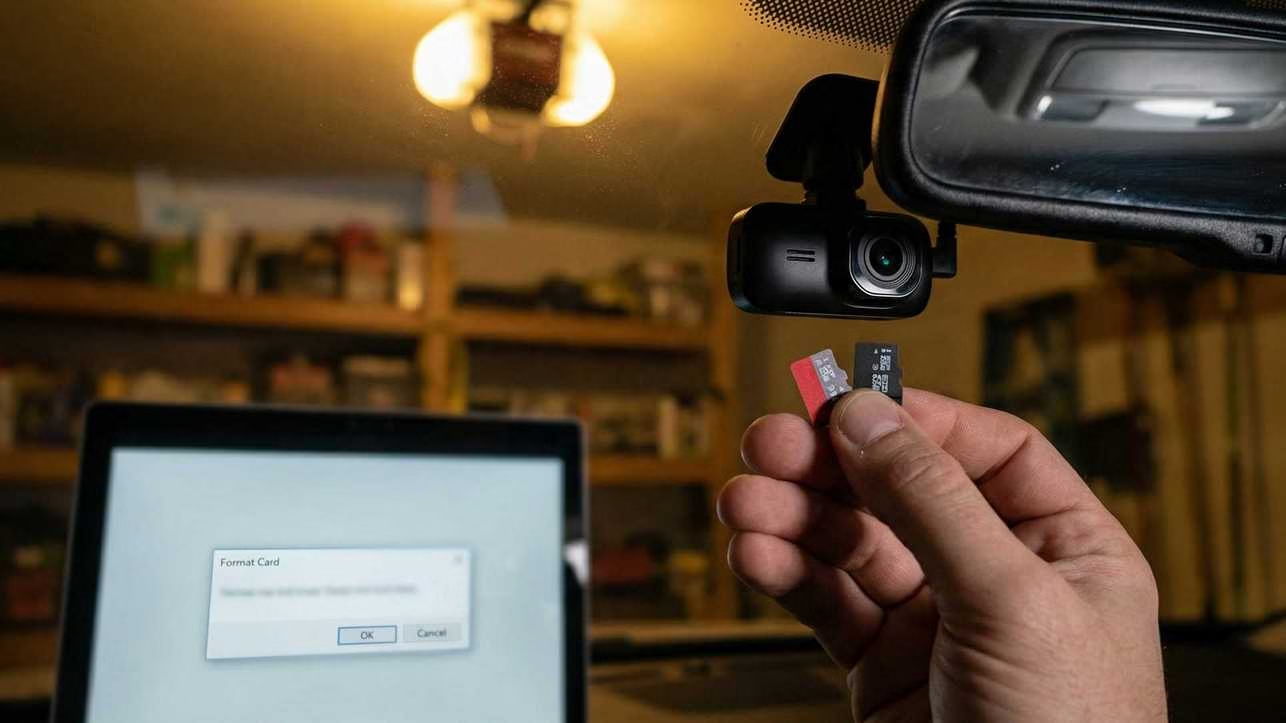
Does your dash cam beep three times and shut off? Or maybe the screen flashes “Format SD Card” endlessly, even after you just formatted it?
Don’t throw the camera away yet.
90% of the time, the camera is fine. The problem is almost always the MicroSD card inside it. Dash cams are brutal on memory cards—far worse than phones or GoPros—and most standard cards (like the cheap SanDisk Ultra you likely bought) physically cannot handle the heat and constant rewriting.
Here is the technical fix to stop the beeping, get loop recording working again, and how to tell if your card is permanently fried.
The “Why”: The Technical Reality
Why does a card that works in your phone fail in your car?
- The “Write Cycle” Limit: A standard SD card (TLC memory) is designed to be written to maybe 500 times. A dash cam writes to the entire card every 4-6 hours. You are hitting the card’s lifetime limit in months, not years.
- The “exFAT” Conflict: Most 64GB+ cards come pre-formatted as exFAT. Many dash cams (especially Viofo, Rexing, and older BlackVues) physically require FAT32 to create the loop files. If the card is exFAT, the camera can’t create the file structure, so it panics and beeps.
- The Heat Death: If you park in the sun, your windshield hits 140°F+. Standard cards warp and lose contact with the pins at those temperatures.
The Fix: How to Force Format to FAT32 (The “GUIFormat” Method)
Windows won’t let you format any card larger than 32GB to FAT32. It forces you to use exFAT. To fix this, we need a specific tool that overrides Windows.
Step 1: Get the Right Tool
Do not use the standard Windows right-click format.
- Download GUIFormat (A free, lightweight utility).
- Insert your MicroSD card into your computer (use a card reader, not the camera cable).
Step 2: The “Allocation” Setting (Critical)
- Open GUIFormat.
- Select your SD card drive letter (Make sure it’s the right one!).
- Allocation Unit Size: Set this to 32768.
- Why? This specific cluster size matches the “block” size most dash cam processors use for loop recording.
- Click Start.
Step 3: The “In-Camera” Handshake
- Eject the card and put it back in the dash cam.
- Power on the cam. It might still beep.
- IMMEDIATELY go into the camera’s menu and find “Format SD Card.”
- Run the format inside the camera.
- Why? The PC formatted the file system (FAT32), but the camera needs to build its specific folder structure (DCIM, RO, Event) on top of that.
Maintenance: Preventing the “Pink Slime” of Data
Just like a humidifier gets mold, SD cards get “data rot.”
- Format Monthly: Every 30 days, press the format button on your camera. This clears out “locked” files (potholes or bumps the G-sensor thought were accidents) that clog up the card until there is no room left for new video.
- Listen for the Beep: If you hear a beep while driving, don’t ignore it. It means the camera has stopped recording.
The “Call it a Loss” Section (When to Replace)
If you followed the steps above and:
- The “Card Error” message returns within 2 days.
- The camera freezes and requires a hard reset.
- You view the footage and see “glitches” or purple lines.
Your card’s NAND flash is dead. No amount of formatting will fix a card that has physically run out of write cycles.
The Only Replacements We Trust (2026)
Do not buy another standard card. You need a “High Endurance” card built with MLC or pSLC memory chips that can withstand 120°F heat.
- Best Overall Reliability: [Samsung PRO Endurance (Link to Amazon/Review)]
- Why: Rated for 40,000 hours of recording. The industry standard.
- Best for 4K Cams: [SanDisk MAX Endurance (Link to Amazon/Review)]
- Why: Faster write speeds needed for 4K front + rear streams.
Still having issues? If you swapped the card and the camera still loops, your camera’s internal capacitor might be dead. Check our guide on the Best Dash Cams for Extreme Heat & Cold (2026) for a capacitor-based replacement that won’t fail.
FAQ: Common “Card Error” Questions
Q: Why does my camera stop recording when the card is full? A: It shouldn’t. Loop recording should delete the oldest files. If it stops, your G-Sensor is likely too sensitive, “locking” every file as an accident so the camera can’t delete them. Set G-Sensor to “Low.”
Q: Can I use a 256GB card? A: Only if you use the GUIFormat method above. Most cameras officially say “Max 128GB,” but we have successfully run 256GB cards in Viofo and Garmin units by forcing them to FAT32.
Q: What is the “cluster size” error? A: This happens if you format on a Mac. Macs add hidden system files (.DS_Store) that confuse dash cams. Always format on Windows or inside the camera itself.